How Wispr injects text into any focused app
Agent Wispr's approach to typing transcribed speech into whatever application currently has focus, without app-specific integrations.
By Agent Software

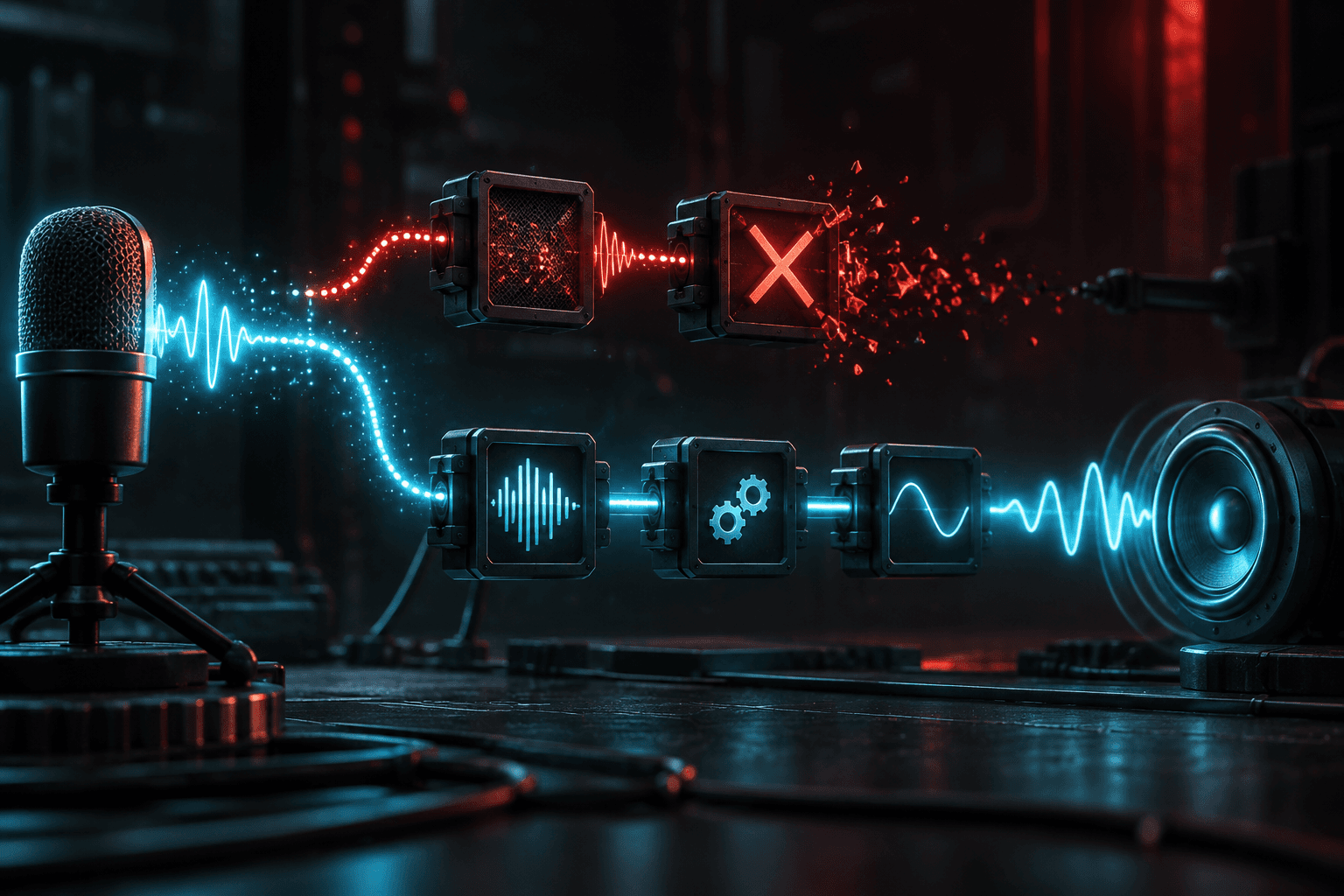
The integration problem every voice tool eventually hits
A voice dictation tool built around per-app integrations has to pick which apps it supports, build and maintain an integration for each one, and inevitably leave gaps. The moment you switch to a tool that isn't on the list — a niche terminal, a new coding agent, an internal tool — dictation stops working.
Wispr's answer: act like a keyboard, not a plugin
Agent Wispr doesn't try to integrate with individual applications at all. It transcribes speech locally, then injects the resulting text into whatever window currently has operating-system-level focus — the same mechanism a physical keyboard uses. If an application can receive typed input, Wispr can type into it.
Why this matters for developer workflows specifically
Developers move between editors, terminals, browsers, and coding agents constantly, often within the same task. A per-app integration model would need explicit support for every one of those surfaces. The focus-based model needs none of that: it works in a terminal, a browser address bar, a chat window, or an editor without Wispr needing to know anything about what any of those specific applications are.
The one real edge case: elevated permissions
There's a genuine limitation worth being upfront about: on Windows, an application running with elevated (administrator) permissions can refuse input from a process that isn't also elevated. Practically, that means an admin-mode terminal needs Wispr itself running elevated to receive dictation — a deliberate OS-level security boundary, not a bug in the injection approach.
What this buys you long-term
Because Wispr isn't tied to specific app integrations, it doesn't need a roadmap item every time a new coding agent or terminal shows up. The "supported apps" list is effectively "anything that accepts keyboard input," which is a much more durable position than chasing individual integrations one at a time.